
A practical guide for homelab engineers who want a real media server running on a real cluster
Self‑hosting media is one of the most satisfying parts of a homelab — and Jellyfin is the gold standard for doing it right. But running Jellyfin inside Kubernetes requires a bit of care: it needs fast storage, stable networking, and access to your media library without bottlenecks.
This guide walks through deploying Jellyfin on Kubernetes with:
- host networking (for DLNA, SSDP, and discovery protocols)
- CephFS for configuration and cache volumes
- NFS for your media library
- node pinning to keep Jellyfin on a specific node in the cluster
- elevated security context to allow hardware access and host‑level networking
Before we dive into manifests, let’s quickly define the core technologies.
What Is Jellyfin?
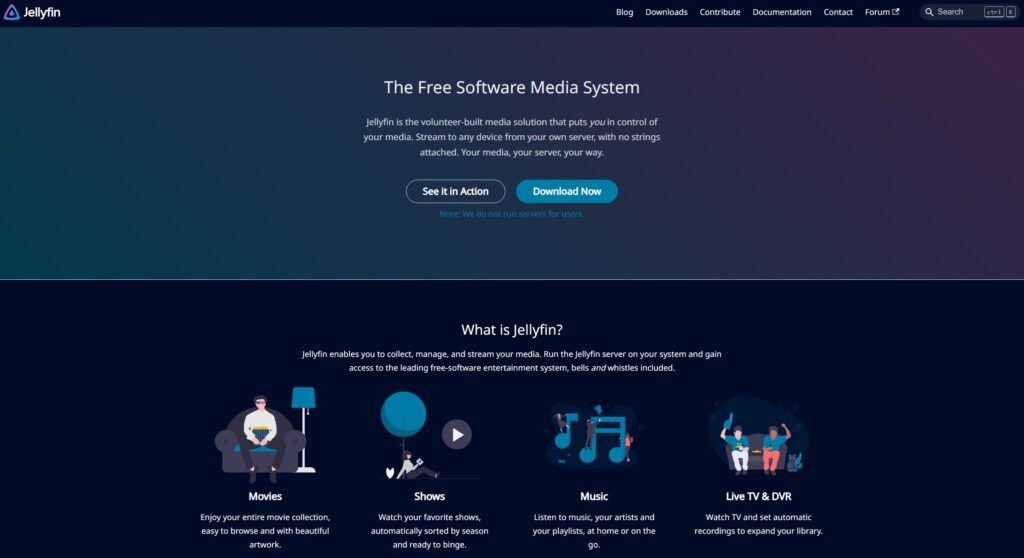
Jellyfin is a fully open‑source media server — a self‑hosted alternative to Plex or Emby. It handles:
- video streaming
- metadata fetching
- transcoding
- DLNA/UPnP discovery
- user libraries
- remote access
Unlike Plex, Jellyfin has no cloud dependency, no subscriptions, and no telemetry. It’s perfect for homelabs and Kubernetes clusters.
What Is NFS?
NFS (Network File System) is a simple, fast, POSIX‑compatible network filesystem. It’s ideal for:
- large media libraries
- read‑mostly workloads
- multi‑node access
In this setup, your media folder is exported via NFS and mounted directly into the Jellyfin pod.
What Is Ceph?
Ceph is a distributed storage system that provides:
- CephFS (a POSIX filesystem)
- RBD (block devices)
- Object storage (S3‑like)
In your cluster, CephFS is used for:
- Jellyfin configuration
- Jellyfin cache
This ensures:
- high availability
- redundancy
- consistent performance
- no single‑node dependency
Why Jellyfin Needs Host Networking
DLNA, SSDP, and multicast discovery protocols do not work inside Kubernetes overlay networks.
To make Jellyfin behave like a real media server, it must run with:
hostNetwork: true
This exposes Jellyfin directly on the node’s IP address, typically:
http://<node-ip>:8096
Because of this, you do not need a Kubernetes Service.
Why Jellyfin Needs Elevated Security Context
DLNA, hardware acceleration, and host networking require:
- NET_ADMIN capabilities
- access to
/devdevices - relaxed seccomp/apparmor profiles
So the Deployment uses:
securityContext:
  privileged: true
This is expected for media servers running on bare metal or host networking.
Why Pin Jellyfin to a Specific Node
Pinning Jellyfin to a Kubenetes node is simple: IP will not change everytime Jellyfin pod gets allocated to a new node.
nodeSelector:
kubernetes.io/hostname: <hostname>This ensures Jellyfin always runs on the same machine.
Storage Layout
CephFS volumes
/config→ Jellyfin configuration/cache→ metadata, images, transcode cache
NFS volume
/media→ your movies, shows, music, photos
This separation keeps your media library lightweight and your config resilient.
Full Kubernetes Deployment
apiVersion: v1
kind: Namespace
metadata:
name: multimedia
---
apiVersion: v1
kind: PersistentVolumeClaim
metadata:
name: jellyfin-config-pvc
namespace: multimedia
spec:
accessModes:
- ReadWriteOnce
resources:
requests:
storage: 5Gi
storageClassName: cephfs
---
apiVersion: v1
kind: PersistentVolumeClaim
metadata:
name: jellyfin-cache-pvc
namespace: multimedia
spec:
accessModes:
- ReadWriteOnce
resources:
requests:
storage: 5Gi
storageClassName: cephfs
---
apiVersion: storage.k8s.io/v1
kind: StorageClass
metadata:
name: nfs-omv7-csi-storage
provisioner: nfs.csi.k8s.io
reclaimPolicy: Retain
volumeBindingMode: Immediate
mountOptions:
- hard
- nfsvers=4.1
---
apiVersion: v1
kind: PersistentVolumeClaim
metadata:
name: jellyfin-multimedia-pvc
namespace: multimedia
spec:
storageClassName: nfs-omv7-csi-storage
accessModes:
- ReadWriteOnce
resources:
requests:
storage: 4Ti
---
apiVersion: v1
kind: PersistentVolume
metadata:
name: jellyfin-multimedia-pv
spec:
capacity:
storage: 4Ti
accessModes:
- ReadWriteOnce
nfs:
path: /export/Public/Multimedia
server: 10.0.2.1
persistentVolumeReclaimPolicy: Retain
claimRef:
name: jellyfin-multimedia-pvc
namespace: multimedia
---
apiVersion: apps/v1
kind: Deployment
metadata:
name: jellyfin
labels:
app: jellyfin
namespace: multimedia
spec:
replicas: 1
selector:
matchLabels:
app: jellyfin
tier: frontend
template:
metadata:
labels:
app: jellyfin
tier: frontend
spec:
containers:
- name: jellyfin
image: jellyfin/jellyfin
securityContext:
  privileged: true
resources:
requests:
memory: "1Gi"
cpu: "100m"
limits:
memory: "4Gi"
cpu: "2000m"
ports:
- containerPort: 8096
name: web
- containerPort: 1900
protocol: UDP
volumeMounts:
- name: jellyfin-config-pvc
mountPath: /config
- name: jellyfin-cache-pvc
mountPath: /cache
- name: jellyfin-multimedia-pvc
mountPath: /multimedia
hostNetwork: true
volumes:
- name: jellyfin-config-pvc
persistentVolumeClaim:
claimName: jellyfin-config-pvc
- name: jellyfin-cache-pvc
persistentVolumeClaim:
claimName: jellyfin-cache-pvc
- name: jellyfin-multimedia-pvc
persistentVolumeClaim:
claimName: jellyfin-multimedia-pvc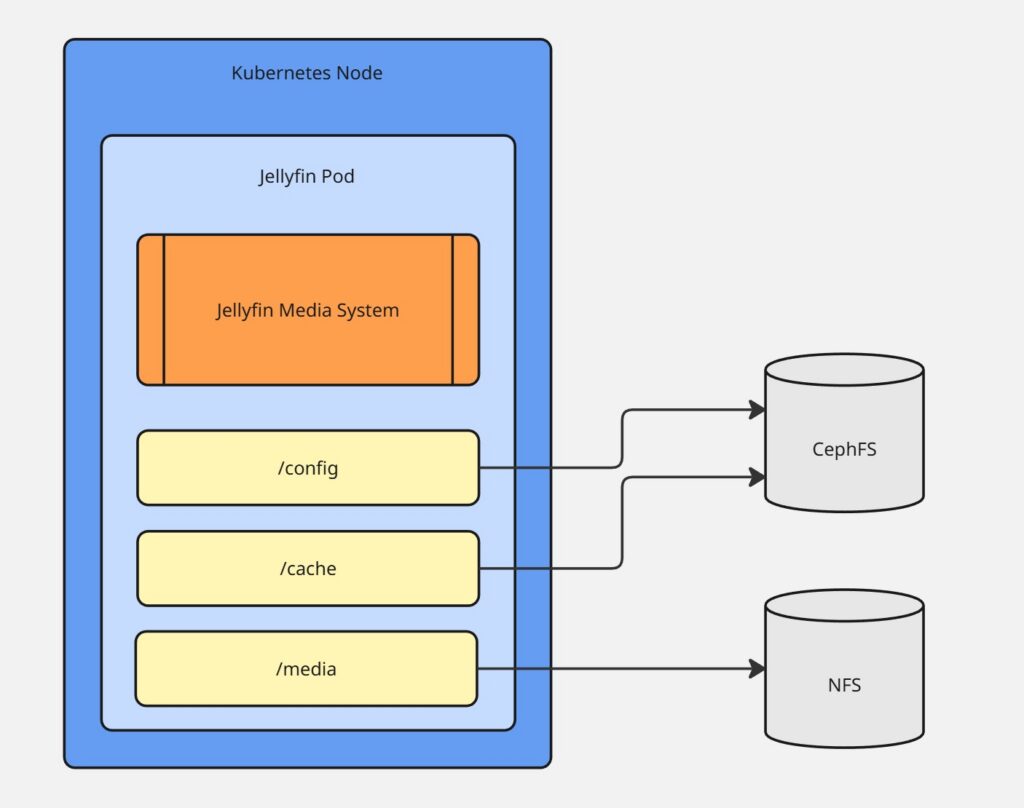
CephFS PVCs
apiVersion: v1
kind: PersistentVolumeClaim
metadata:
  name: jellyfin-config
  namespace: media
spec:
  accessModes:
    - ReadWriteMany
  storageClassName: cephfs
  resources:
    requests:
      storage: 5Gi
And similarly for jellyfin-cache.
NFS Media Volume
Your NFS server exports something like:
/mnt/media 10.0.0.0/24(rw,sync,no_subtree_check)
And Kubernetes mounts it directly into the pod.
Accessing Jellyfin
Because Jellyfin runs in host networking mode, it is available at:
http://<node-ip>:8096
For example:
http://10.0.2.52:8096
No Service, no Ingress, no LoadBalancer — just direct access.
Why This Architecture Works So Well
- ✔ DLNA works – Because Jellyfin is on the host network.
- ✔ Media access is fast – Because NFS is simple and optimized for large sequential reads.
- ✔ Config is resilient – Because CephFS replicates it across the cluster.
- ✔ Cache is persistent – Metadata doesn’t need to be rebuilt after every restart.
- ✔ Node pinning ensures stability – Your media server always runs on the same hardware.
- ✔ Kubernetes manages the lifecycle – Automatic restarts, health checks, and upgrades.
Conclusion
Running Jellyfin in Kubernetes is not only possible — it’s elegant when done correctly. With:
- host networking for DLNA
- CephFS for config and cache
- NFS for media
- node pinning for stability
- privileged mode for hardware access
…you get a media server that behaves like a bare‑metal installation but benefits from Kubernetes orchestration.